
3-month subscription
$25 total
From $0.28 per day
- 35,000+ international TV channels
- 179,000+ movies and series on demand
- SD, HD, FHD, 4K and UHD options
- Optimized streaming routes
- +$5 for adult channels
- +1 month free (annual plan only)
Bring live channels, major sports, movies and complete series to compatible Smart TVs, Fire TV, Android devices, phones and computers. FreeGoTV gives US viewers a broad international catalog, guided installation and friendly WhatsApp support.
Others compete only on price. We focus on the full experience — 12 months for $59.
Switch from a scheduled channel to an on-demand movie or episode inside the same compatible player. Poster art makes browsing from the couch faster while search helps narrow a large library.










Browse football, motorsports, combat sports and other event categories, then save the listings you follow so the next game takes fewer remote clicks to find.










These interface previews illustrate content-led navigation. Exact menus depend on the player and device you choose.
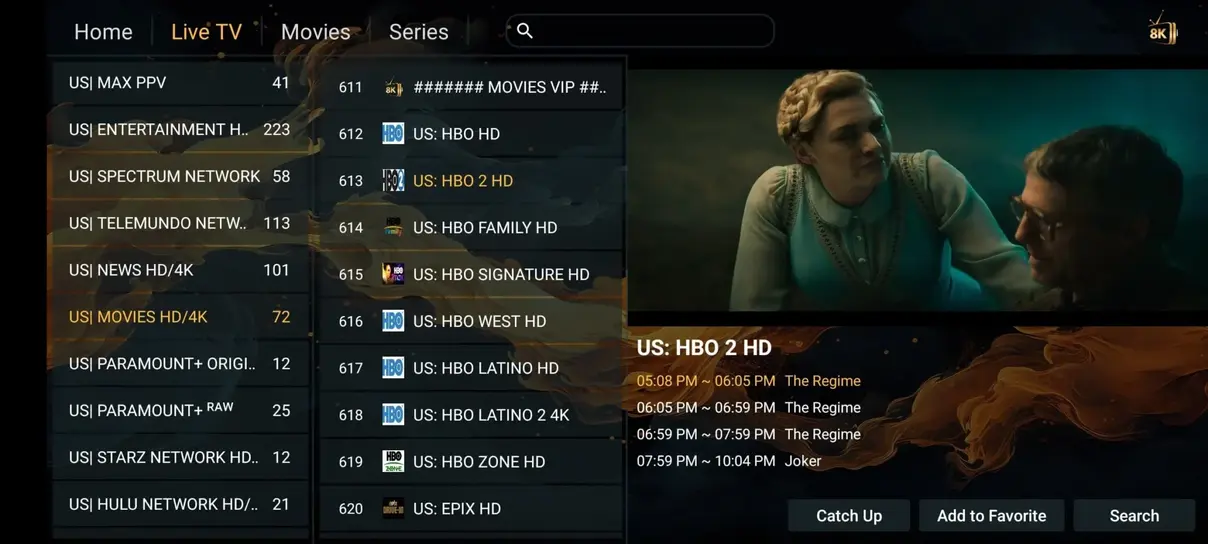
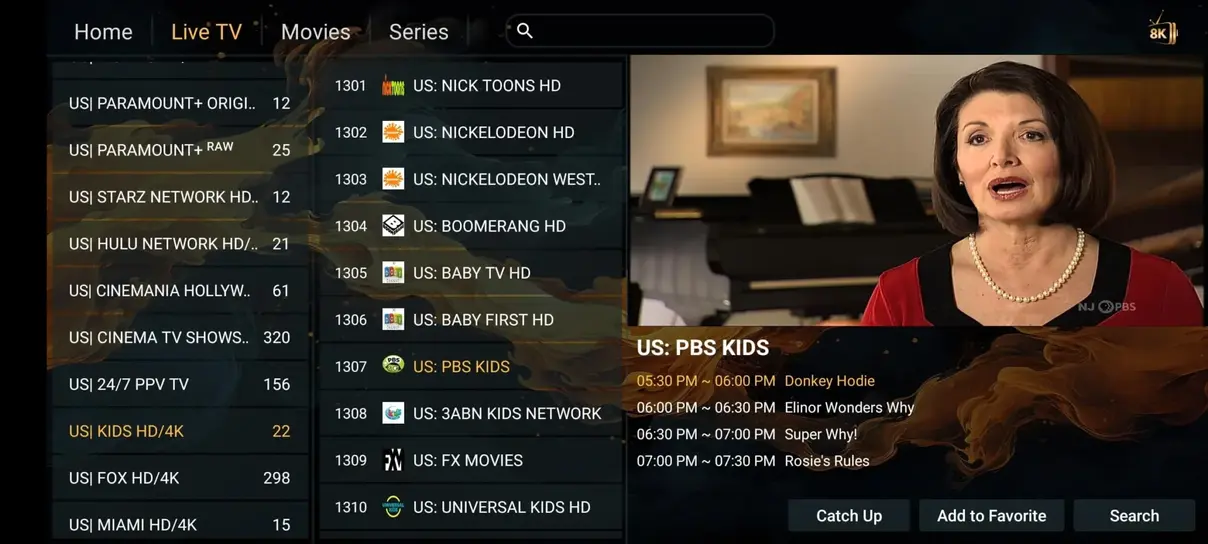
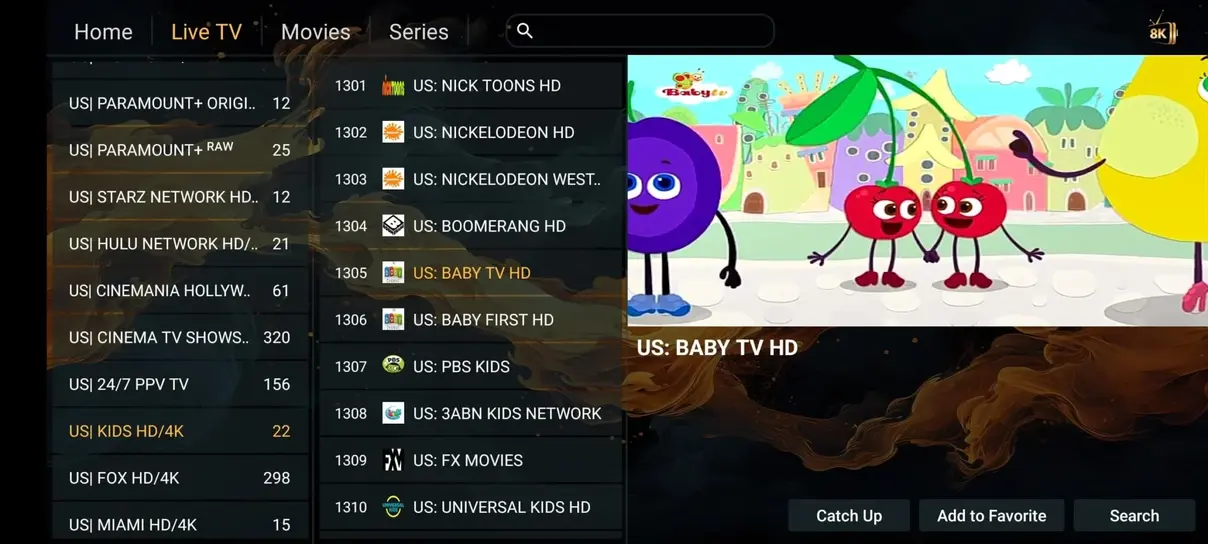
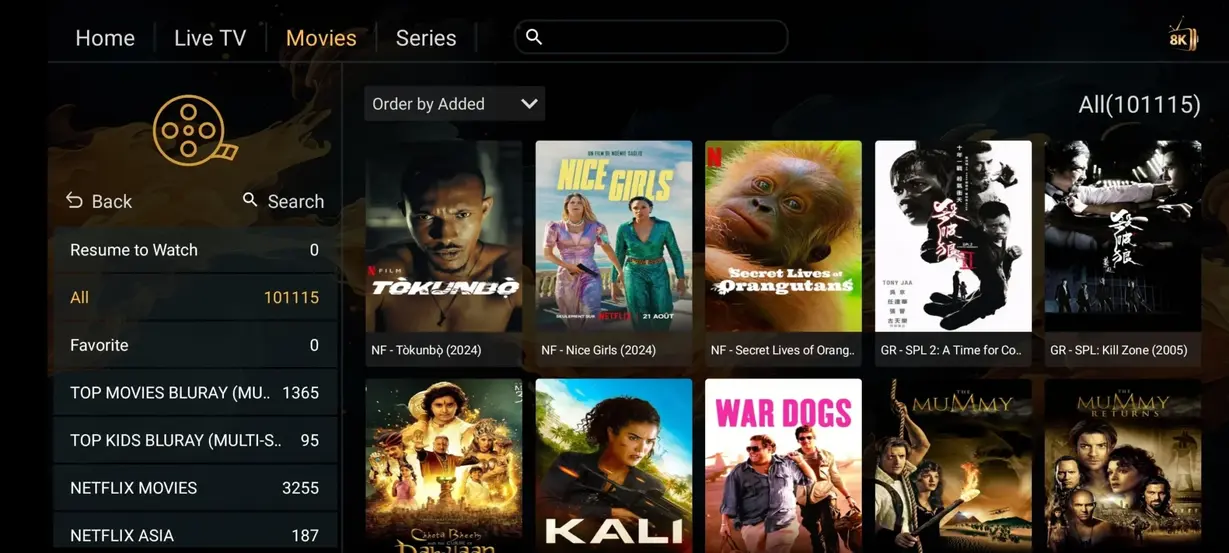
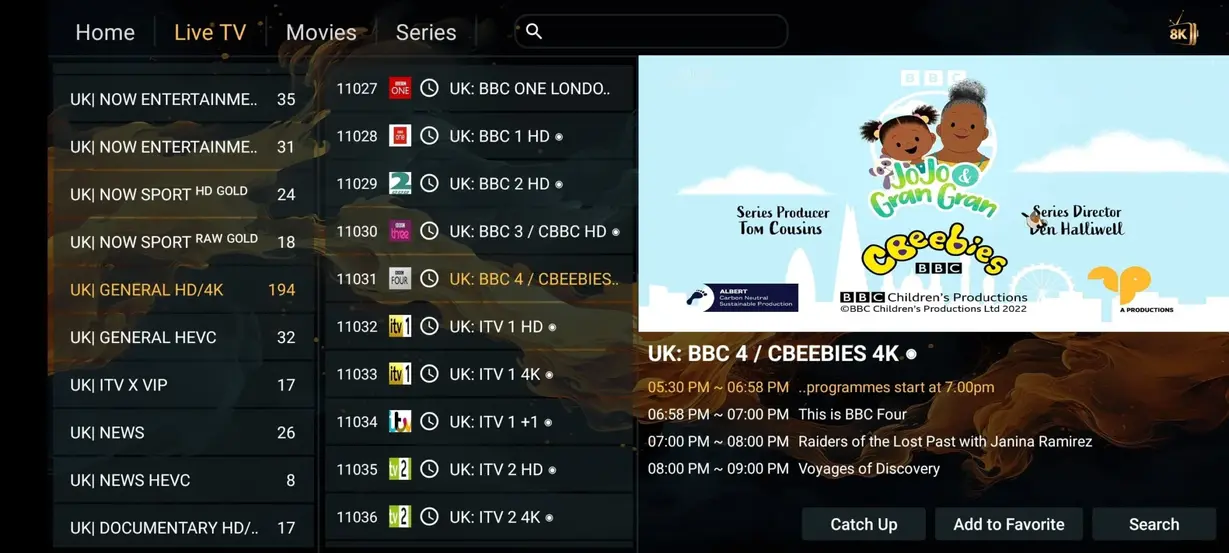
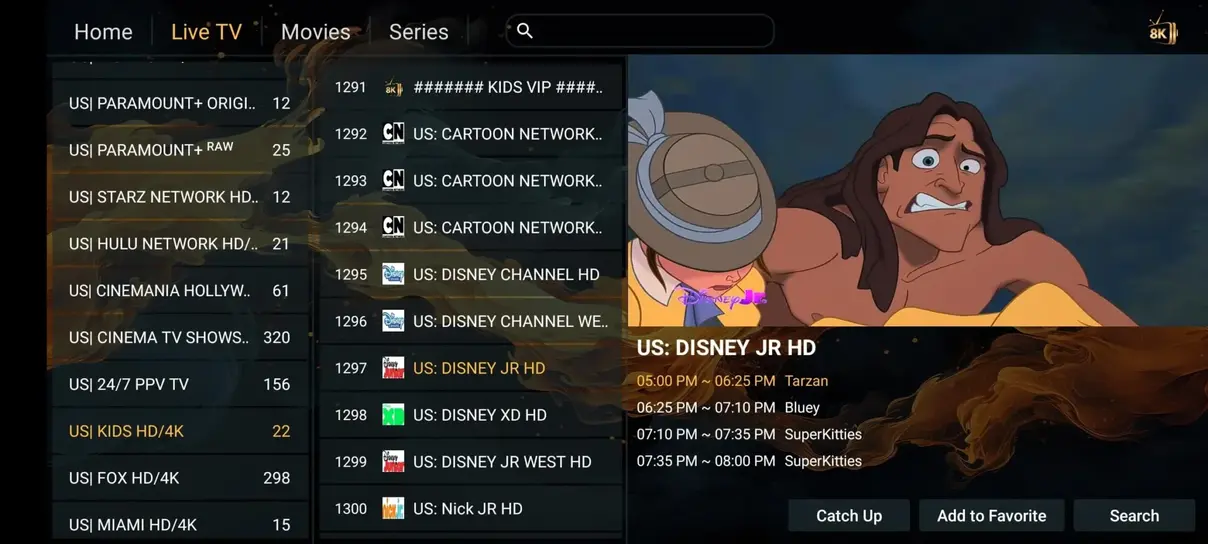
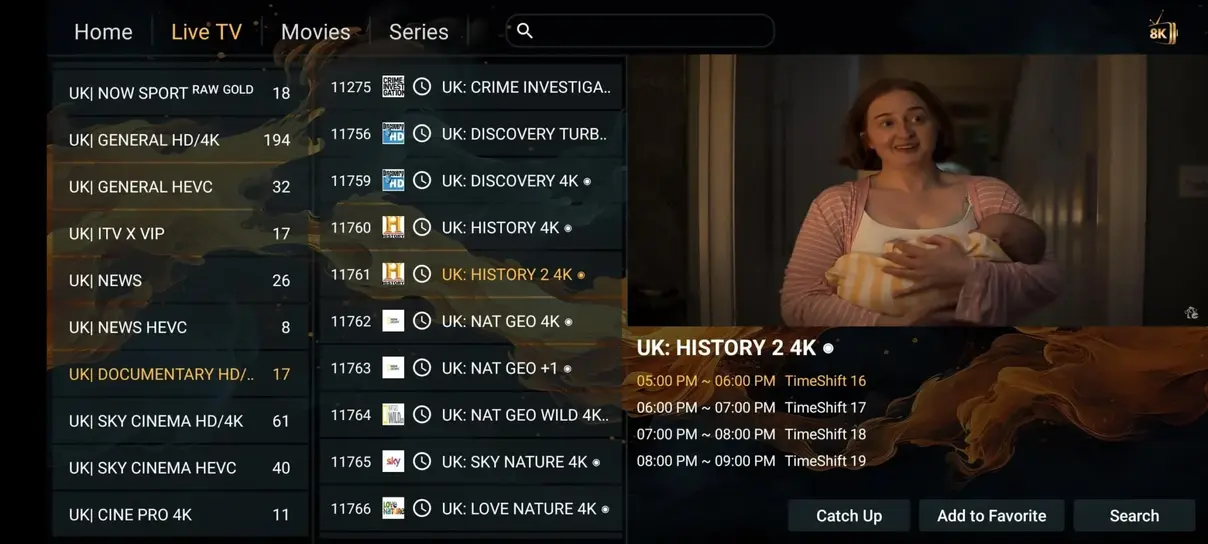
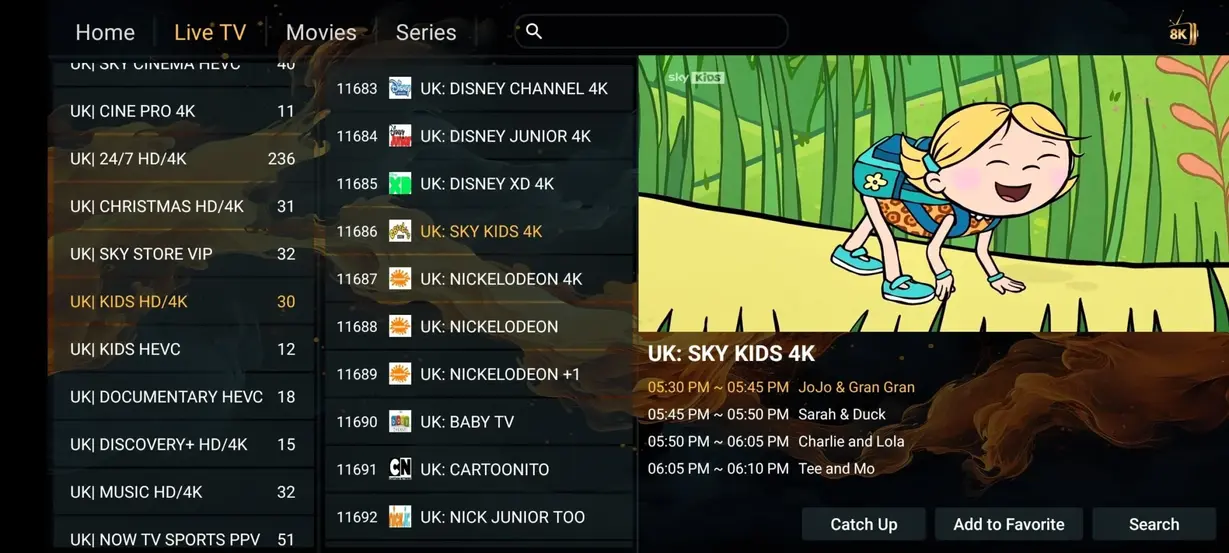
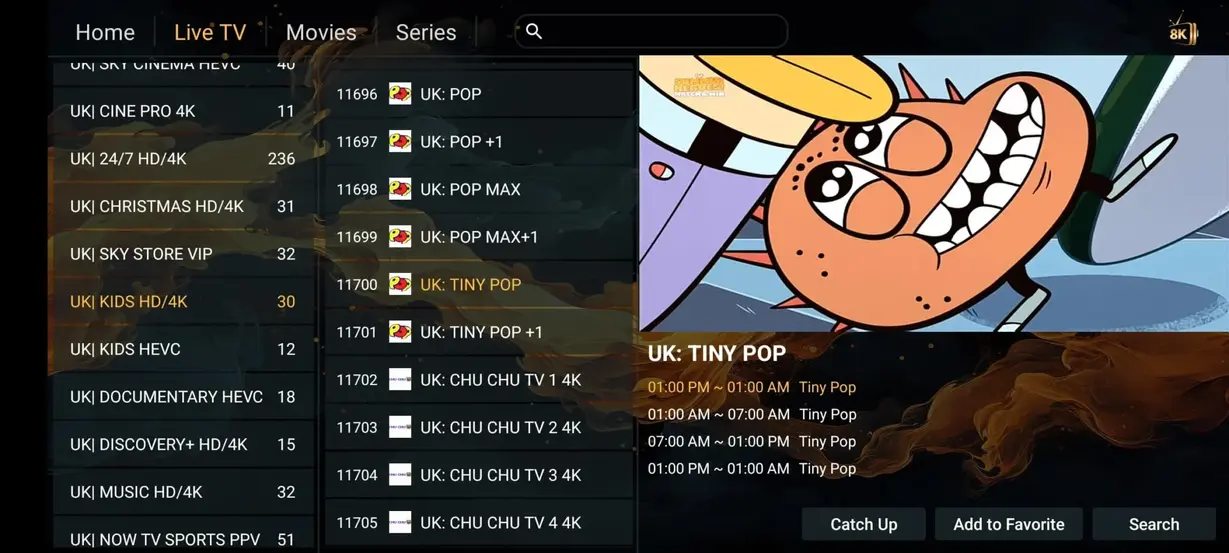


HOT Player is shown as an interface example. App availability, version and menu details can vary by platform.
Browse a visual sample of app and channel artwork. Availability changes over time, so ask about a specific US or international station before ordering.


























Compare headline catalog and package characteristics. Traditional provider prices and channel counts vary, so use this as an orientation rather than a universal quote.
| Category | FreeGoTV | Typical cable or satellite |
|---|---|---|
| Annual cost | $59 a year | $1,200+ a year |
| Live channels | 41,821+ | 200–500 |
| Movies and series | 177,000+ | Often costs extra |
| Adult channel option | Included on annual plan | Often unavailable |
| 24/7 channels | 1,000+ | None |
| Sports categories | Included | Package dependent |
| Long contract | No fixed-term contract stated | Common |
| Watch on compatible devices | Yes | Often limited |
Choose the duration that fits your plans. The 12-month package carries the annual promotion and the lowest approximate daily cost.
$25 total
From $0.28 per day
$59 total
From $0.16 per day
$39 total
From $0.21 per day
Try a shorter commitment with the same clear support route.
$12
Choose 1 monthDifferent rooms do not need the same program. Multi-screen options carry the core one-screen features and allow simultaneous viewing on the number of connections confirmed with support.
$99
Core subscription features included. Watch simultaneously on both confirmed screens.
Choose this plan$59
Core subscription features included. Watch simultaneously on both confirmed screens.
Choose this planAsk us
Core subscription features included. Watch simultaneously on both confirmed screens.
Ask about screens
App installation, access details and one final refresh are usually all that stand between activation and the first channel.
Download HOT Player or another compatible IPTV player on your Smart TV, Fire TV, Android device or other supported platform.
Open the player and add the M3U address, Xtream Codes information or device details supplied in your subscription email.
Reload the playlist, check the EPG time and open a live channel or VOD item. Ask support if a step looks different on your model.
Use a compatible Smart TV, Fire TV device, Android box, phone, tablet or computer. Wired networking can improve consistency for fixed television setups.






Viewers across the United States use FreeGoTV for sports, movies and international channels. The published rating is 4.9 out of 5 from 243 reviews, with feedback centered on picture quality, dependable navigation and uncomplicated installation.
★★★★★ 4.9 / 5 based on 243 reviews
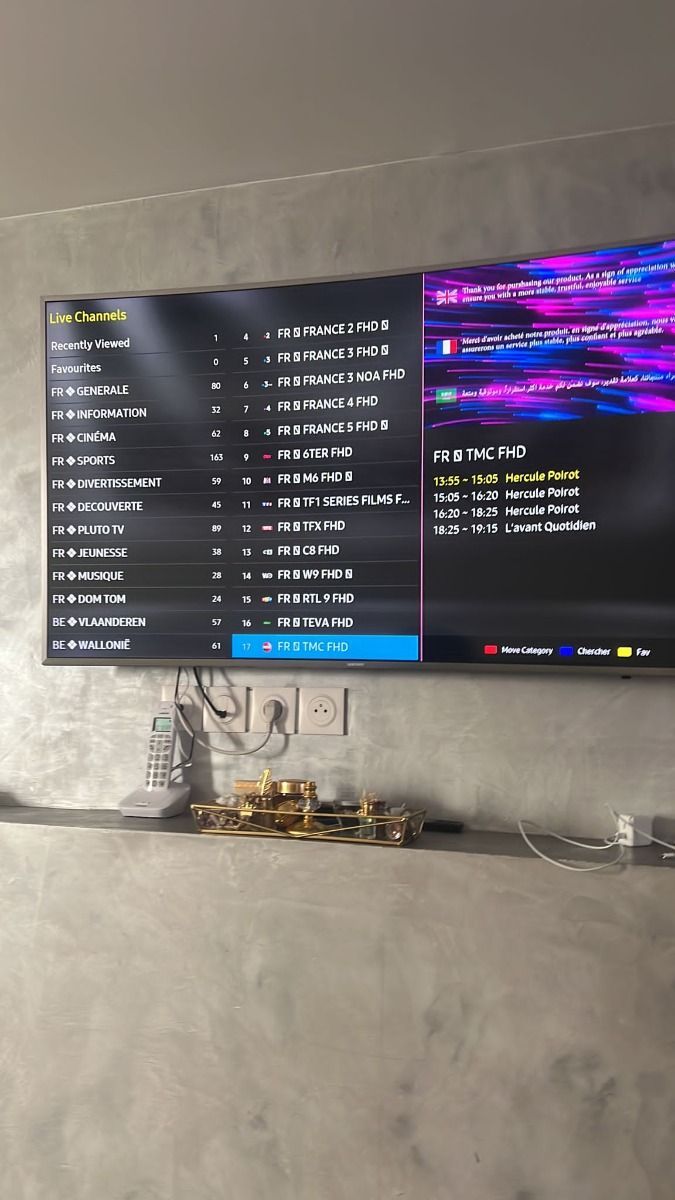
The Fire TV instructions made the first login easy. I saved my sports groups as favorites and can reach weekend events without searching the entire list.
Customer feedback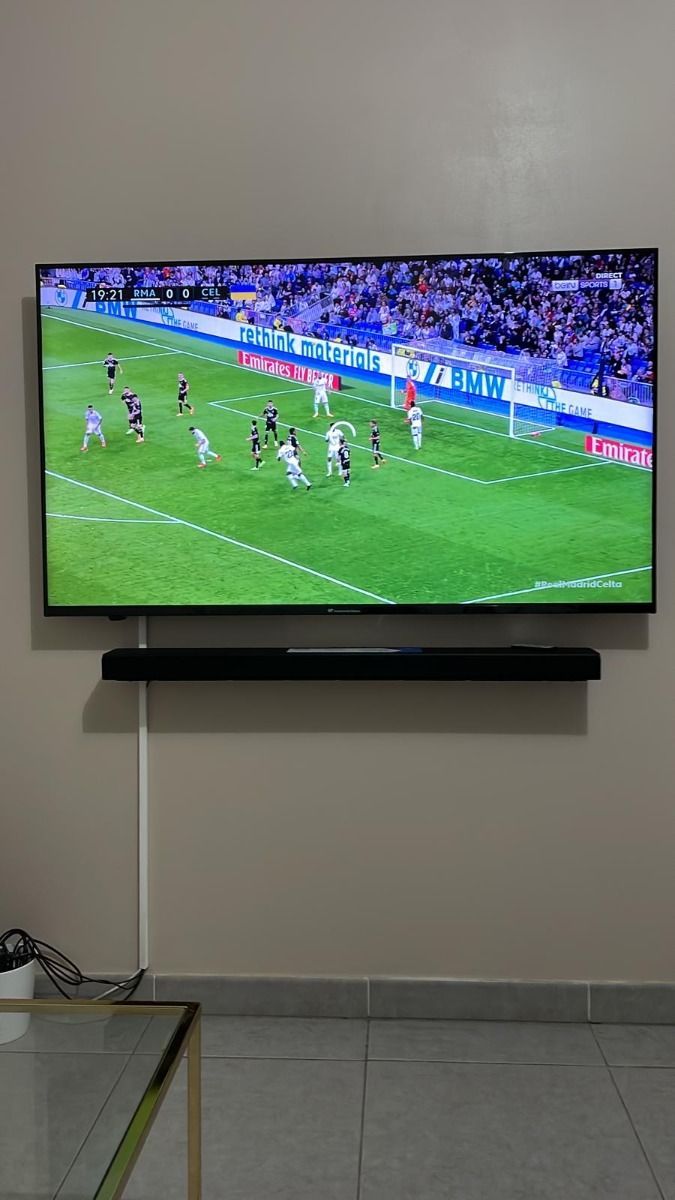
We use the movie library on an LG TV and the menus feel straightforward from the remote. Support also explained how to refresh new categories.
Customer feedback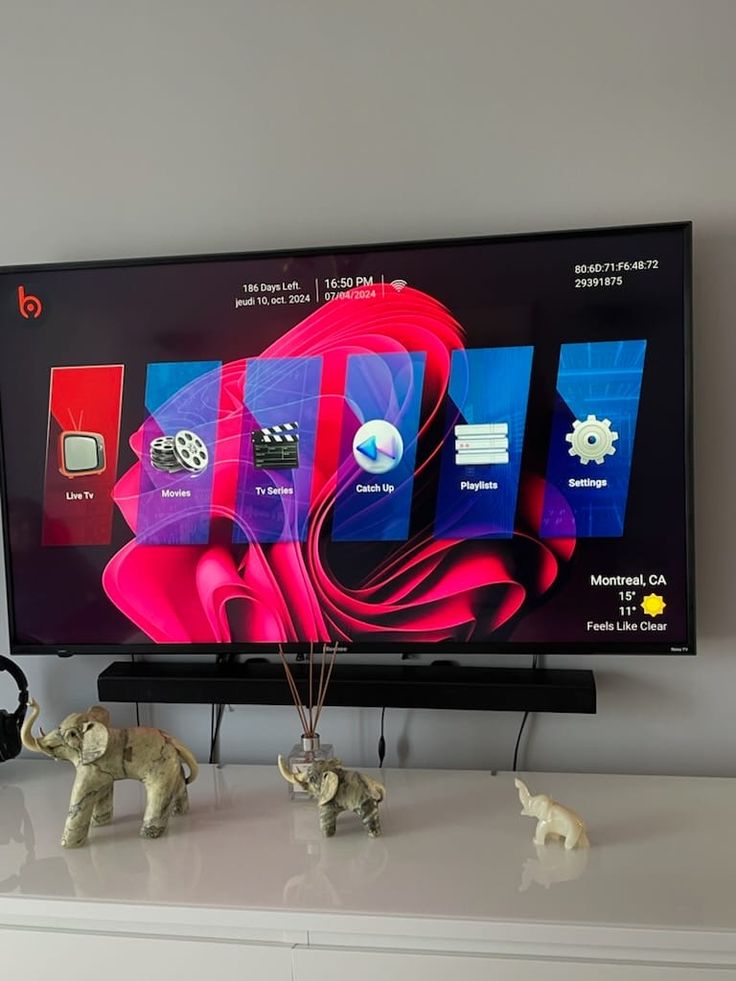
The EPG guide is the feature I notice most. Once the time zone was corrected, browsing live programs became much quicker.
Customer feedback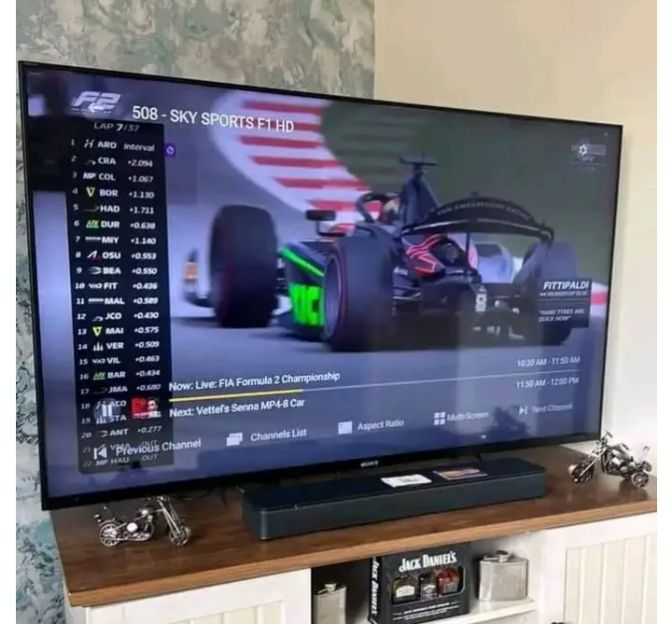
Android TV setup took only a few minutes after I chose the right player. The troubleshooting guide helped me improve the Wi-Fi signal too.
Customer feedback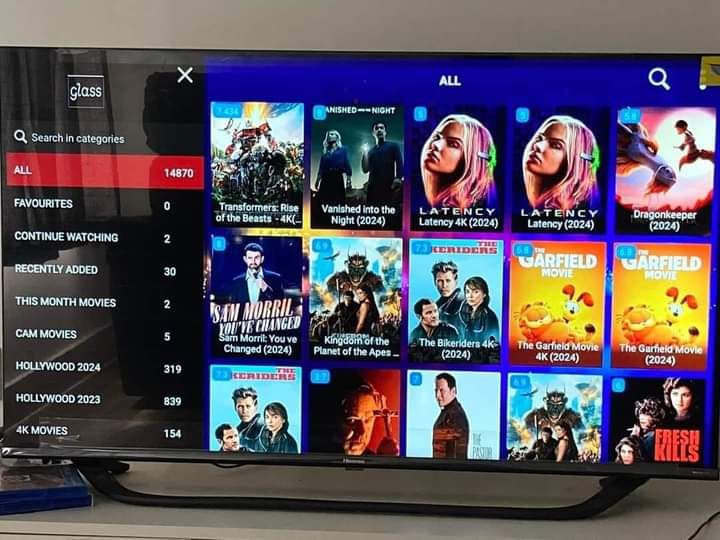
The multi-screen options were described clearly, which helped us choose a package for the living room and a second television.
Customer feedback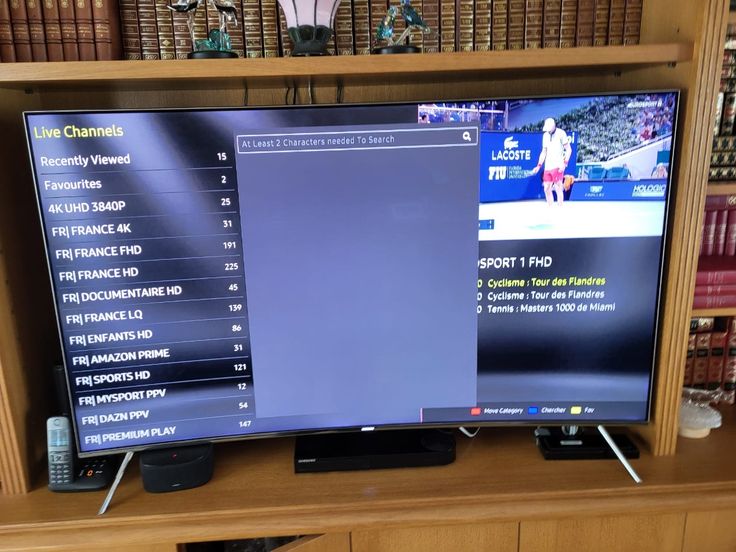
I wanted US entertainment plus international choices for family visits. Favorites keep the larger catalog from becoming overwhelming.
Customer feedback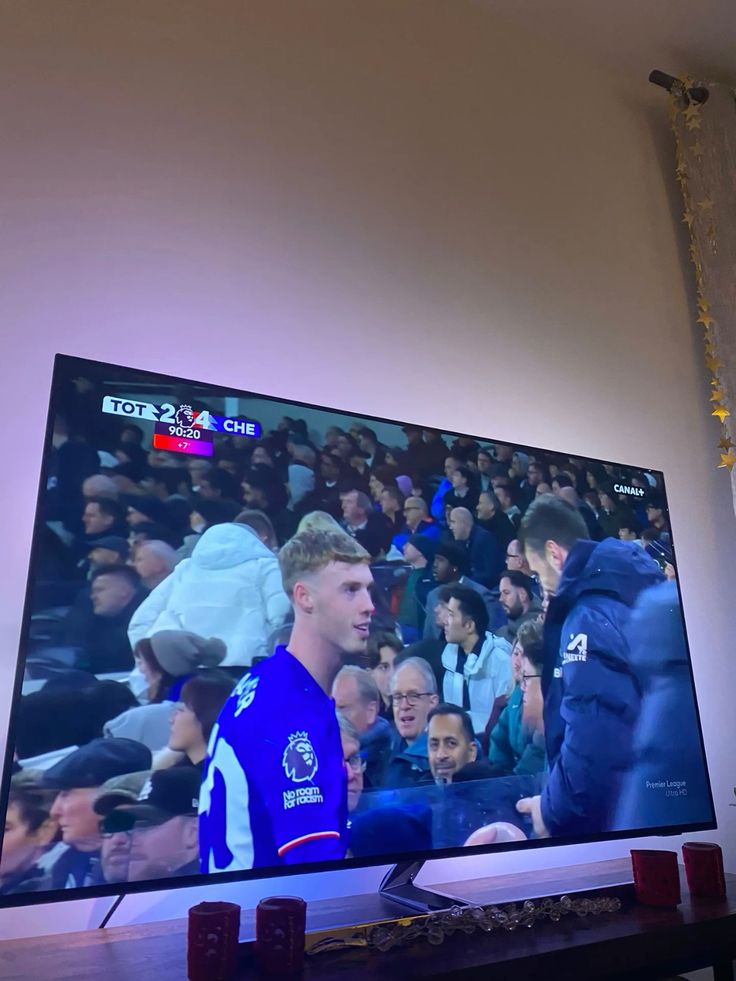
WhatsApp support helped me fix a guide refresh issue without technical jargon. I appreciated receiving one step at a time.
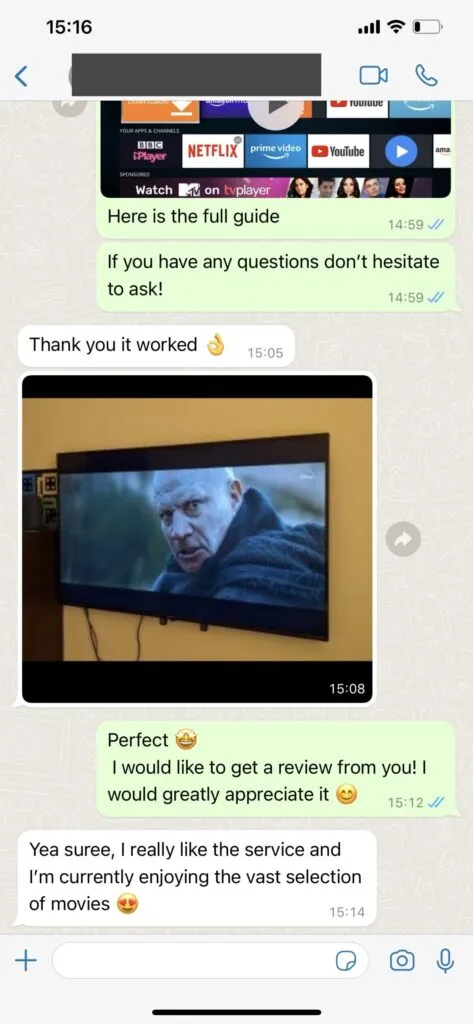
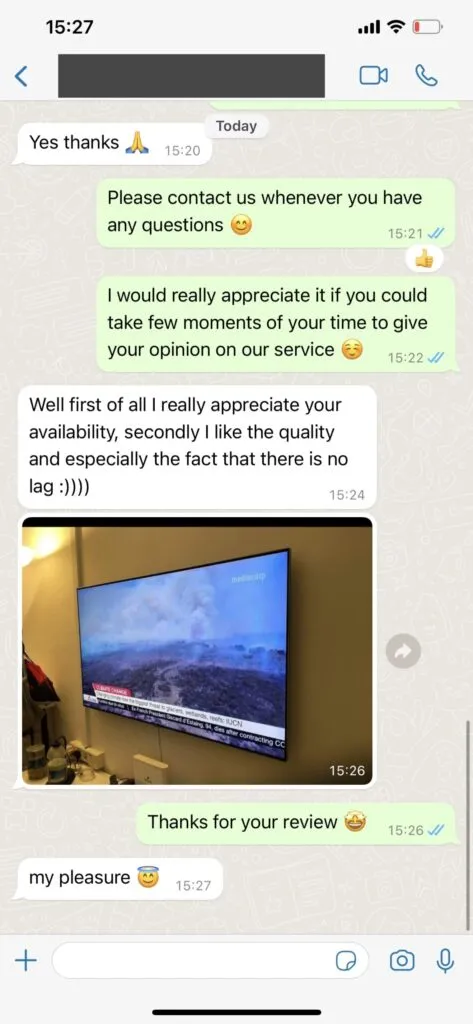
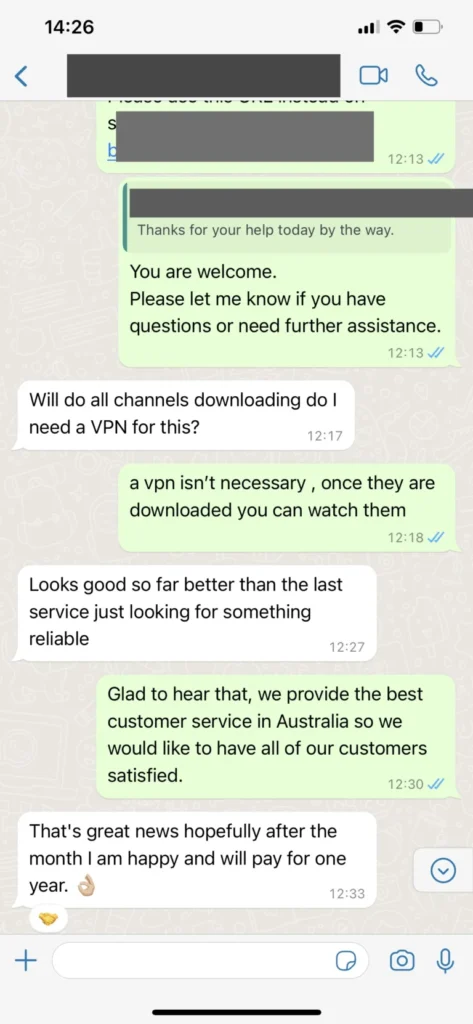
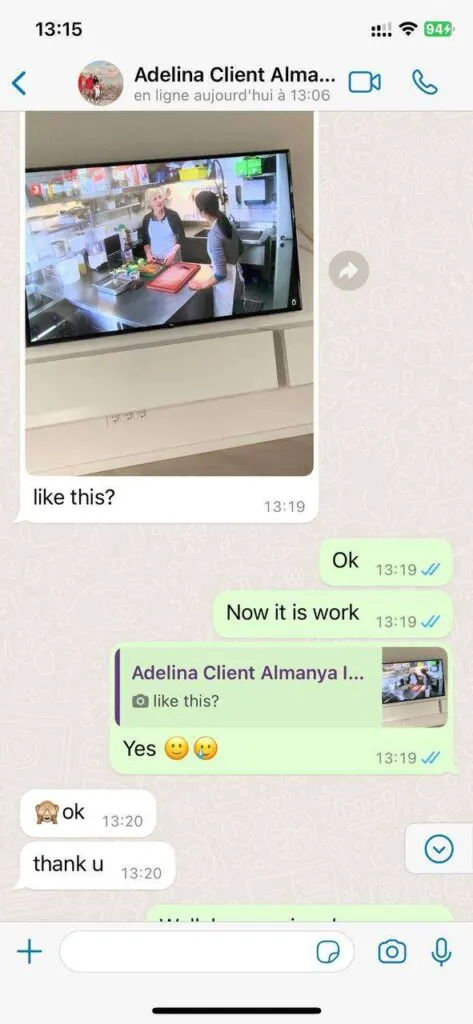
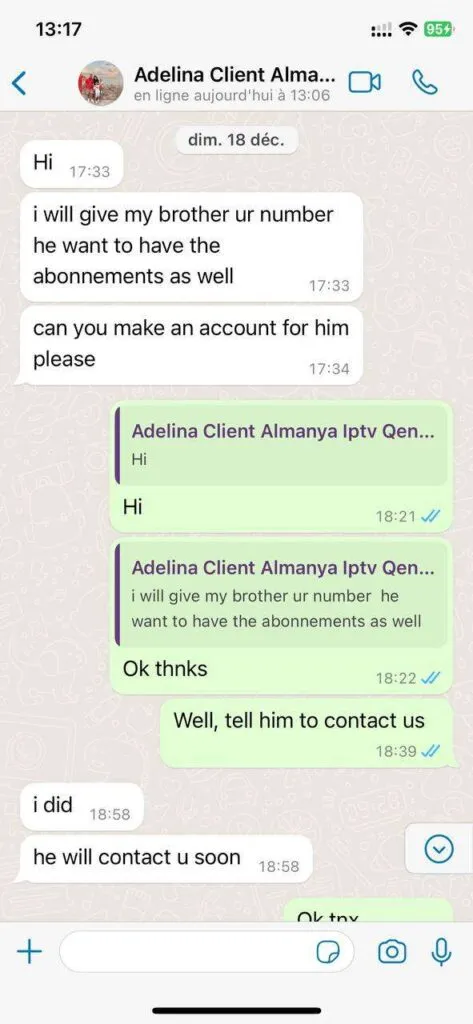
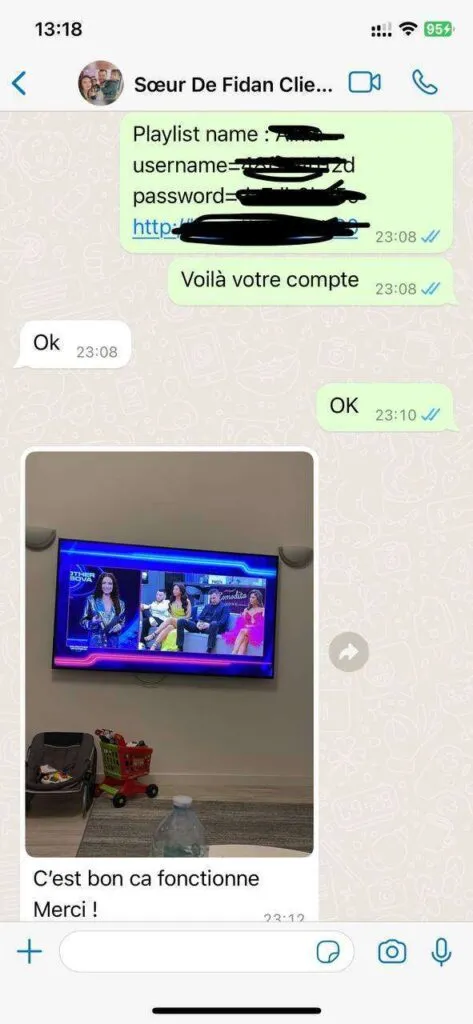
Customer feedbackSee examples of the type of device and setup guidance that can be handled through WhatsApp. Screenshots are illustrative and personal details should never be shared publicly.
From program data to device flexibility, each feature has a practical job in the viewing experience.
Browse US and international channel groups with search and favorites.
Request simultaneous viewing for two or more confirmed screens.
Move between movies and series without waiting for a broadcast schedule.
Choose a stream that suits the display and available connection speed.
Choose a nearby, stable connection path where the service makes one available.
Read program listings and revisit eligible recent broadcasts in supported players.
Find football, motorsport, PPV and event channels in dedicated groups.
Use supported Smart TVs, Fire TV, Android, iOS, computers and boxes.
Refresh playlists and guide information without rebuilding every favorite manually.
Ask for help with package choice, app setup and common playback faults.
Read the policy conditions and contact support promptly if the service does not fit.
The extra month is reserved for the 12-month promotional plan.
This extended guide approaches a complete US streaming overview from distinct practical angles without repeating the same sales paragraph.
Define your must-have experience is an important part of a complete US streaming overview. List the channels, sports, languages and household screens that would make the subscription useful before comparing large catalog totals. Apply that idea first to live television, then note whether movie discovery changes the outcome. A home streaming setup is a chain: the subscription supplies access, the player organizes it, the device decodes it and the local connection carries it. One weak link can imitate a service-wide problem. Record the current setting, change only one factor and replay a familiar item. That small discipline creates evidence instead of guesswork. If your question moves beyond this topic, open the pricing. It provides the next focused check while keeping passwords and complete access URLs out of public conversations.
For the Home topic, begin with what can be observed on the screen. Run a speed test beside the television during a busy evening; a fast result next to the router can hide weak coverage in another room. Test weekend sports at the same time of day and on the same device you normally use, because a quiet afternoon phone test may not represent a busy living-room connection. Next, compare series libraries without changing the app and network together. If the result differs, write down the exact point where it changed. That note is more valuable to support than a general statement that streaming is slow. Use the features for the neighboring decision. This step-by-step approach keeps the recommendation tied to your real US household instead of a generic ideal setup.
a complete US streaming overview becomes easier to judge when movie discovery and Smart TV viewing are treated as separate questions. A player should come from a trustworthy source, accept the provided login method and remain comfortable to navigate from ten feet away. Start with one known channel or title, confirm that the account is active and observe whether the player completes its refresh. Then compare a second item from another category. A single unavailable source does not prove that the complete catalog failed, while several failures across devices point toward a broader account or network check. Continue through the installation guide when its instructions fit the evidence. The goal is not to change every setting quickly; it is to identify which layer changed so the final fix remains stable after the next app update.
A practical decision about series libraries should include the household conditions around it. Playlist URLs and account codes can provide access to the subscription, so keep them out of screenshots, forums and shared cloud notes. In many US homes, televisions share bandwidth with game consoles, security cameras, video meetings and cloud backups. Leave room for those activities before rating Fire TV setup or selecting a longer plan. Ethernet is useful for a fixed television, but well-positioned 5 GHz Wi-Fi can also work when signal strength is healthy. Save the player name, version and device model before requesting help. The FAQ adds a targeted follow-up. Clear observations let support recommend one action rather than asking you to repeat an entire installation.
Home guidance should turn Smart TV viewing into a check you can repeat later. Pin a modest group of favorites early so family members can reach regular stations without reopening every international category. Use a trusted app source, allow the first data load to finish and avoid clearing stored settings until you have confirmed what is wrong. If live television works while the original item does not, compare their categories and update times. If both fail only on one network, investigate that network before requesting new credentials. The contact page explains the most relevant adjacent step. This method respects the difference between content availability, application behavior and connection quality, making a FreeGoTV support conversation shorter and more precise.
When evaluating a complete US streaming overview, make interpret resolution honestly part of the routine. HD and 4K labels describe available sources, but visible quality also depends on compression, player decoding, display settings and bandwidth. Write a short baseline for Fire TV setup: device, app, network and one successful example. That baseline gives you something concrete to compare when weekend sports behaves differently after an update or while traveling. Restarting the correct component may help, but repeated reinstalls can erase clues and favorites without solving the cause. Consult the troubleshooting guide before taking a larger step. A calm, documented sequence protects account details, reduces unnecessary changes and leaves the setup easier for everyone in the household to use.
Set the guide to local time is an important part of a complete US streaming overview. Program listings may download separately from the channel list, and one incorrect offset can shift an otherwise complete schedule. Apply that idea first to live television, then note whether movie discovery changes the outcome. A home streaming setup is a chain: the subscription supplies access, the player organizes it, the device decodes it and the local connection carries it. One weak link can imitate a service-wide problem. Record the current setting, change only one factor and replay a familiar item. That small discipline creates evidence instead of guesswork. If your question moves beyond this topic, open the pricing. It provides the next focused check while keeping passwords and complete access URLs out of public conversations.
For the Home topic, begin with what can be observed on the screen. Live television, replay and on-demand video use different controls and update cycles even when they appear inside one player. Test weekend sports at the same time of day and on the same device you normally use, because a quiet afternoon phone test may not represent a busy living-room connection. Next, compare series libraries without changing the app and network together. If the result differs, write down the exact point where it changed. That note is more valuable to support than a general statement that streaming is slow. Use the features for the neighboring decision. This step-by-step approach keeps the recommendation tied to your real US household instead of a generic ideal setup.
a complete US streaming overview becomes easier to judge when movie discovery and Smart TV viewing are treated as separate questions. Compare a second channel, then a second device or connection, instead of reinstalling the entire setup after the first error. Start with one known channel or title, confirm that the account is active and observe whether the player completes its refresh. Then compare a second item from another category. A single unavailable source does not prove that the complete catalog failed, while several failures across devices point toward a broader account or network check. Continue through the installation guide when its instructions fit the evidence. The goal is not to change every setting quickly; it is to identify which layer changed so the final fix remains stable after the next app update.
A practical decision about series libraries should include the household conditions around it. State the device, player, connection type and exact error in words while leaving usernames, passwords and payment details out of the message. In many US homes, televisions share bandwidth with game consoles, security cameras, video meetings and cloud backups. Leave room for those activities before rating Fire TV setup or selecting a longer plan. Ethernet is useful for a fixed television, but well-positioned 5 GHz Wi-Fi can also work when signal strength is healthy. Save the player name, version and device model before requesting help. The FAQ adds a targeted follow-up. Clear observations let support recommend one action rather than asking you to repeat an entire installation.
Home guidance should turn Smart TV viewing into a check you can repeat later. A longer plan lowers the daily equivalent, yet flexibility may matter more while you are still testing a new device or home network. Use a trusted app source, allow the first data load to finish and avoid clearing stored settings until you have confirmed what is wrong. If live television works while the original item does not, compare their categories and update times. If both fail only on one network, investigate that network before requesting new credentials. The contact page explains the most relevant adjacent step. This method respects the difference between content availability, application behavior and connection quality, making a FreeGoTV support conversation shorter and more precise.
When evaluating a complete US streaming overview, make count simultaneous streams correctly part of the routine. Two installed apps do not automatically equal two concurrent connections; the subscription must explicitly include the needed screens. Write a short baseline for Fire TV setup: device, app, network and one successful example. That baseline gives you something concrete to compare when weekend sports behaves differently after an update or while traveling. Restarting the correct component may help, but repeated reinstalls can erase clues and favorites without solving the cause. Consult the troubleshooting guide before taking a larger step. A calm, documented sequence protects account details, reduces unnecessary changes and leaves the setup easier for everyone in the household to use.
Keep the streaming device healthy is an important part of a complete US streaming overview. Current software, available storage and an occasional restart can resolve slow menus before the playlist or account is blamed. Apply that idea first to live television, then note whether movie discovery changes the outcome. A home streaming setup is a chain: the subscription supplies access, the player organizes it, the device decodes it and the local connection carries it. One weak link can imitate a service-wide problem. Record the current setting, change only one factor and replay a familiar item. That small discipline creates evidence instead of guesswork. If your question moves beyond this topic, open the pricing. It provides the next focused check while keeping passwords and complete access URLs out of public conversations.
For the Home topic, begin with what can be observed on the screen. Hotels, mobile hotspots and public Wi-Fi can apply limits that are absent at home, so travel viewing deserves a separate test. Test weekend sports at the same time of day and on the same device you normally use, because a quiet afternoon phone test may not represent a busy living-room connection. Next, compare series libraries without changing the app and network together. If the result differs, write down the exact point where it changed. That note is more valuable to support than a general statement that streaming is slow. Use the features for the neighboring decision. This step-by-step approach keeps the recommendation tied to your real US household instead of a generic ideal setup.
a complete US streaming overview becomes easier to judge when movie discovery and Smart TV viewing are treated as separate questions. Ask about one essential event, network or language group because catalog composition can change after a headline count is published. Start with one known channel or title, confirm that the account is active and observe whether the player completes its refresh. Then compare a second item from another category. A single unavailable source does not prove that the complete catalog failed, while several failures across devices point toward a broader account or network check. Continue through the installation guide when its instructions fit the evidence. The goal is not to change every setting quickly; it is to identify which layer changed so the final fix remains stable after the next app update.
A practical decision about series libraries should include the household conditions around it. Knowing how to refresh data, confirm account status, restart the player and reach support makes future maintenance far less stressful. In many US homes, televisions share bandwidth with game consoles, security cameras, video meetings and cloud backups. Leave room for those activities before rating Fire TV setup or selecting a longer plan. Ethernet is useful for a fixed television, but well-positioned 5 GHz Wi-Fi can also work when signal strength is healthy. Save the player name, version and device model before requesting help. The FAQ adds a targeted follow-up. Clear observations let support recommend one action rather than asking you to repeat an entire installation.
Use these concise answers as a starting point, then contact support when your device or account needs individual attention.
FreeGoTV support is available on WhatsApp for 16 hours each day. The team can help with player installation, playlist refreshes, account access and common playback questions in English, German, French and Spanish. Complex cases can take longer, but a clear device name and exact error message help support respond efficiently.
Select a plan and use its dedicated WhatsApp button. The prepared message includes the subscription length, allowing support to verify the package and provide secure payment instructions. Protect your account by never posting a password or complete card number in a chat.
Compatible options include many Samsung, LG and Sony Smart TVs, Amazon Fire TV products, Android TV boxes, iPhone and Android phones, tablets, Windows computers, Macs and Apple TV. Your device still needs a suitable player such as HOT Player, IPTV Smarters, TiviMate or another app that supports the supplied login format.
FreeGoTV currently describes 41,821+ live listings, 142,754+ movies, 34,260+ series and 1,000+ continuous channels across American and international groups. Catalogs change, so ask support to confirm any must-have network, event or language category before buying.
Plan for at least 10 Mbps of available bandwidth for one HD stream and approximately 25 Mbps for one 4K stream. Leave additional capacity for gaming, video calls and other household devices. Ethernet or strong 5 GHz Wi-Fi usually produces a steadier living-room connection.
A VPN is optional rather than a built-in requirement. It may add privacy on a trusted provider, but distant servers can lower speed and it does not change copyright or licensing duties. Follow applicable US law and the terms of your internet and content providers.
Access can generally work wherever your compatible device has a suitable connection, subject to local rules, network restrictions and the service terms. Avoid entering account details on untrusted public Wi-Fi, and test the player before leaving if viewing while traveling matters to you.